 France
 HongKong
 Japan
Japan Kenya
Kenya New Zealand
 Singapore
 USA
USA Tanzania
 UK
UK Uganda
 Vietnam
 Antwerp
 Dubai
Dubai IBU GIFT CITY
 Indonesia


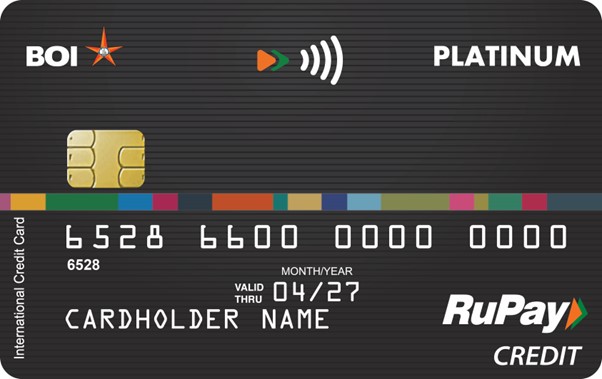
Swadhan Rupay Platinum
- Card is issued against TDR (Term Deposit Receipt) only.
- Card is accepted at all the Domestic and foreign merchants across the globe.
- EMI at POS facility is available on POS that are managed/owned by M/S WorldLine Private Limited irrespective of Bank.
- Customer will get 2X Reward points in POS an ECOM transactions. *(Excluding Blocked Categories).
- Maximum amount of cash limit is 50% of the spending limit.
- Maximum amount of cash that can be withdrawn from – ATM – Rs. 15,000 per day from any ATM locations worldwide.
- Billing cycle is from 16th of current month to 15th of next month.
- Payment is to be made on or before 5th of succeeding month which mostly suits the requirement of salaried class.
- Flexible credit limits for add-on cards.
Swadhan Rupay Platinum
- Customer should have a valid and active savings account with the Bank
- Individual, Staff/non-staff, private limited company, partnership firms, public limited company.
- Customer should be having steady source of income verifiable through Income Tax Returns.
Swadhan Rupay Platinum
- Issuance- NIL
- AMC - NIL (principal)
- AMC - NIL (Add on card)
- Replacement - NIL
Swadhan Rupay Platinum
- Login to BOI Omni Neo App with your credentials
- Go to Manage Cards option.
- Locate the card to be activated under Credit Card tab
- Under the inactive card, select Activate Card option
- Enter Expiry (MM/YY) as mentioned on card followed by verification OTP sent to registered mobile number
- Once verified, you can set PIN immediately by choosing Set PIN Now or choose Set PIN Later for PIN generation at a later stage.
- Enter and re-enter 4 digit PIN to be set, followed by verification OTP sent to registered mobile number for successful card activation and PIN generation
- Login to Internet Banking platform with your credentials
- Go to Pay option and select My Cards.
- Locate the card to be activated under Credit Card tab
- Under the inactive card, select Activate Card option
- Enter Expiry (MM/YY) as mentioned on card followed by verification OTP sent to registered mobile number
- Once verified, you can set PIN immediately by choosing Set PIN Now or choose Set PIN Later for PIN generation at a later stage.
- Enter and re-enter 4 digit PIN to be set, followed by verification OTP sent to registered mobile number for successful card activation and PIN generation.
- Branches can facilitate activation of credit cards issued by raising a service request in CRMNext portal, with necessary information (Customer ID & masked card number).
Note: Card to be activated within 30 days from the date of issuance in order to avoid the closure of the card as per the RBI Guidelines.
Swadhan Rupay Platinum
- Login to Mobile Banking App with your credentials
- Go to Manage Cards
- Under Credit Cards Section, select the Active Credit Card for which PIN has to be set
- Under My Card Services, select Set Card PIN option
- Enter and re-enter 4 digit PIN to be set, followed by verification OTP sent to registered mobile number for successful PIN generation.
- Login to Internet Banking platform with your credentials
- Go to Pay option and select My Cards.
- Locate the card to be activated under Credit Card tab
- Under My Card Services, select Generate PIN option
- Enter and re-enter 4 digit PIN to be set, followed by verification OTP sent to registered mobile number for successful PIN generation.
- Customers can approach their nearest branch for availing InstaPINs for their credit cards.
Swadhan Rupay Platinum
- Login to Mobile Banking App with your credentials
- Go to Manage Cards
- Under Credit Cards Section, select the Set Limit And Channels option
- You can enable all Domestic/International limits by choosing Enable All, or individually by enabling ATM/Tap and Pay/E-Commerce/Merchant Outlets
- You can also set limits by entering in the text box adjacent to channel, or using slider on the left.
- Click on Save Changes for successful limit updation
- Login to Internet Banking platform with your credentials
- Go to Pay option and select My Cards.
- Locate the card to be actioned under Credit Card tab.
- Choose a card and select Set Limits and Channels option
- You can enable all Domestic/International limits by choosing Enable All, or individually by enabling ATM/Tap and Pay/E-Commerce/Merchant Outlets
- You can also set limits by entering in the text box adjacent to channel, or using slider on the left.
- Click on Save Changes for successful limit updation
- Login to Mobile Banking App with your credentials
- Go to Manage Cards
- Under Credit Cards Section, select the Set Limit And Channels option
- You can enable all Domestic/International limits by choosing Enable All, or individually by enabling ATM/Tap and Pay/E-Commerce/Merchant Outlets
- You can also set limits by entering in the text box adjacent to channel, or using slider on the left.
- Click on Save Changes for successful limit updation
- Login to Internet Banking platform with your credentials
- Go to Pay option and select My Cards.
- Locate the card to be actioned under Credit Card tab.
- Choose a card and select Set Limits and Channels option
- You can enable all Domestic/International limits by choosing Enable All, or individually by enabling ATM/Tap and Pay/E-Commerce/Merchant Outlets
- You can also set limits by entering in the text box adjacent to channel, or using slider on the left.
- Click on Save Changes for successful limit updation